Games and DLC
Updating Your Xbox Games
Updating Your Xbox Games
Method 1
- There are three different ways to do this.
- For this method, get a stealth server set up.
- connect to Xbox Live
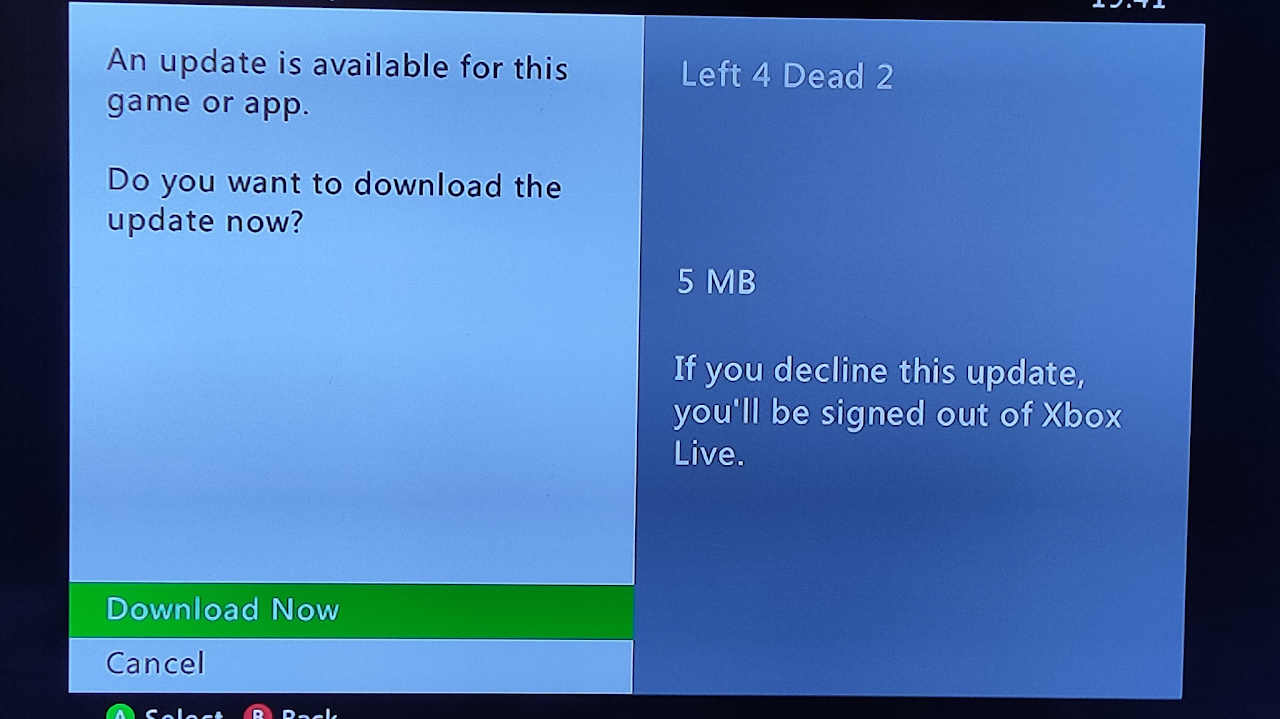
- Open the game you want updated
- Xbox will ask for you to update the game
- That's all you have to do.
Method 2
This is not a recommended way to update your games because a lot of title updates are missing and may not include the latest version.
- For this method, you will need Aurora installed on your console and be connected to the internet with Live Block on or have a stealth server enabled.
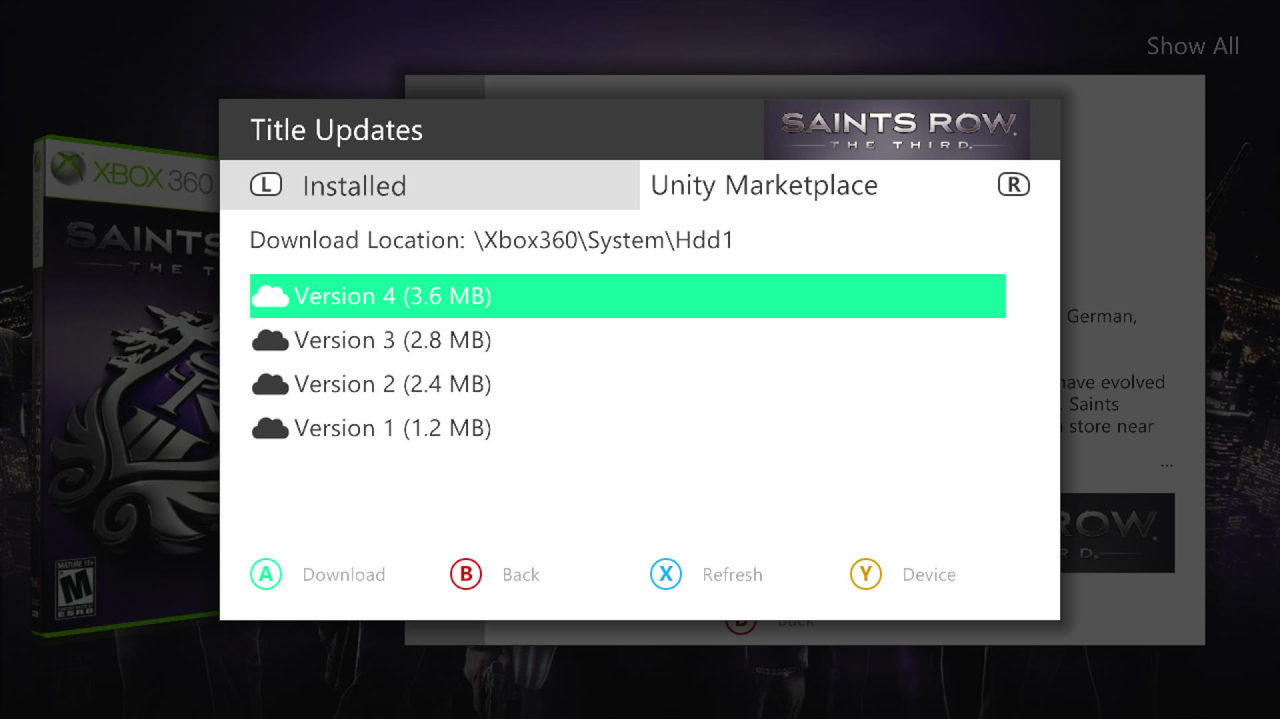
- In aurora find the game you want to update, press Y on it
- Go to the controller icon press A
- Press RB for Unity Marketplace
- If the game has updates on their database you should see them
- Choose the update you want to install and press A on it
- Once its downloaded it should say installed on it
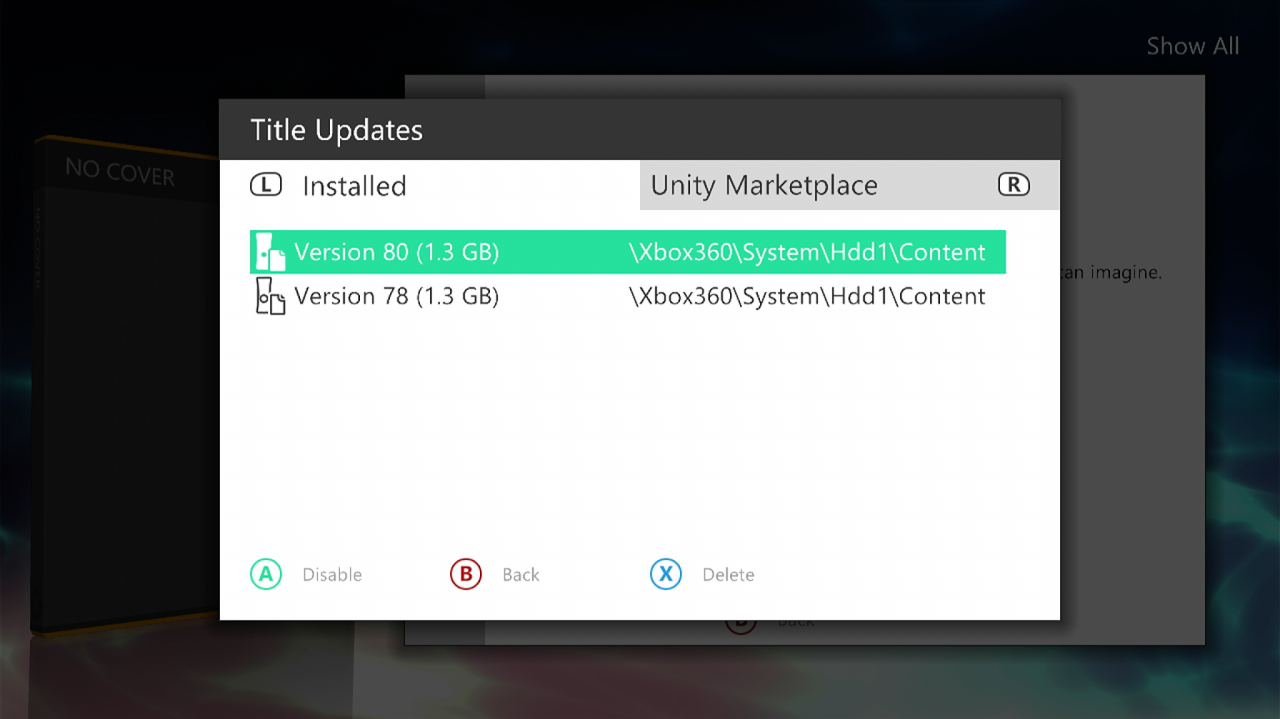
- Press LB to go to the installed tab
- Click A on the update to enable it.
Method 3
- For this method, you will install the update manually.
- Download your title update file
- Insert your flash drive into your computer if you store your files on a flash drive
- If you store your files on your internal hard drive connect to FTP.
- Open your storage device
- Go to your Content folder and find your Titleid folder for the game you want to update
- We are going to use Minecraft as an example with the game id "584111F7"
- Open the Titleid folder
- If you already have a folder named 000B0000 inside the Titleid folder, you are good. If not, make one.
- Put your title update inside of the 000B0000 folder
If you use the Microsoft dash as your main you are good to go if you use Aurora follow the step below
Applying your Title updates in Aurora
In Aurora make sure you have title updated auto scan enabled by pressing start, content, and title updates auto scan is enabled
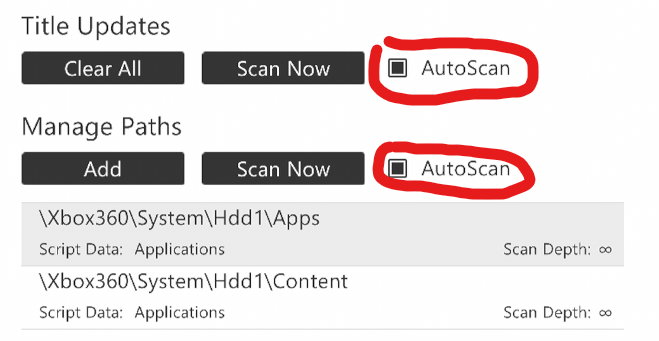
- Go to Aurora Home, press Back, then press Restart.
- This will reboot Aurora, not your console.
- Go to the game you want to update and press Y on it
- Go to the controller icon
- Press A, you should see under installed your title update
- Press A on it to enable it, your game will now boot with the update