
Networking
Setting up FTP On Aurora
Setting up FTP On Aurora
Network
Enabling FTP in Aurora
- In Aurora, press Start.
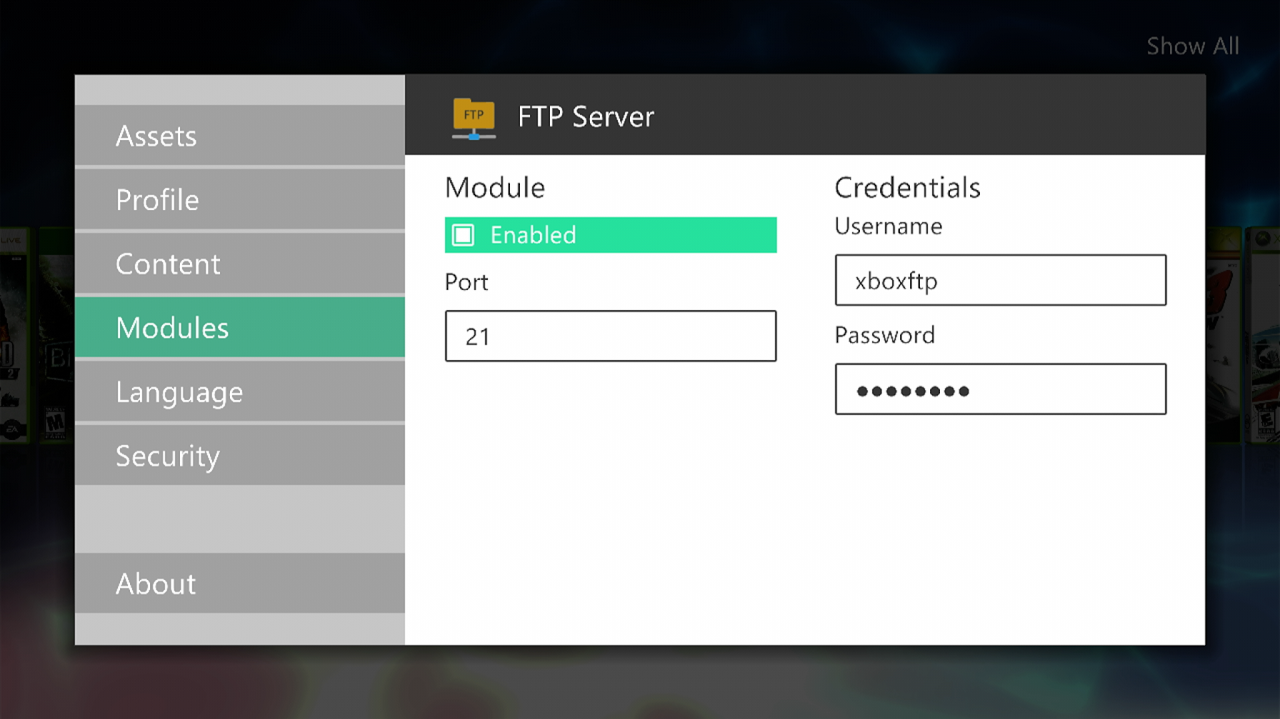
- Go to modules
- And click FTP
- Make sure the module is enabled
- And port and username is setup to 21 and xboxftp
- Go to password
- Click A and set the password you want it to be
- Go to auroras home and press back you
- Should see a ip address along the lines of 192.168.x.x
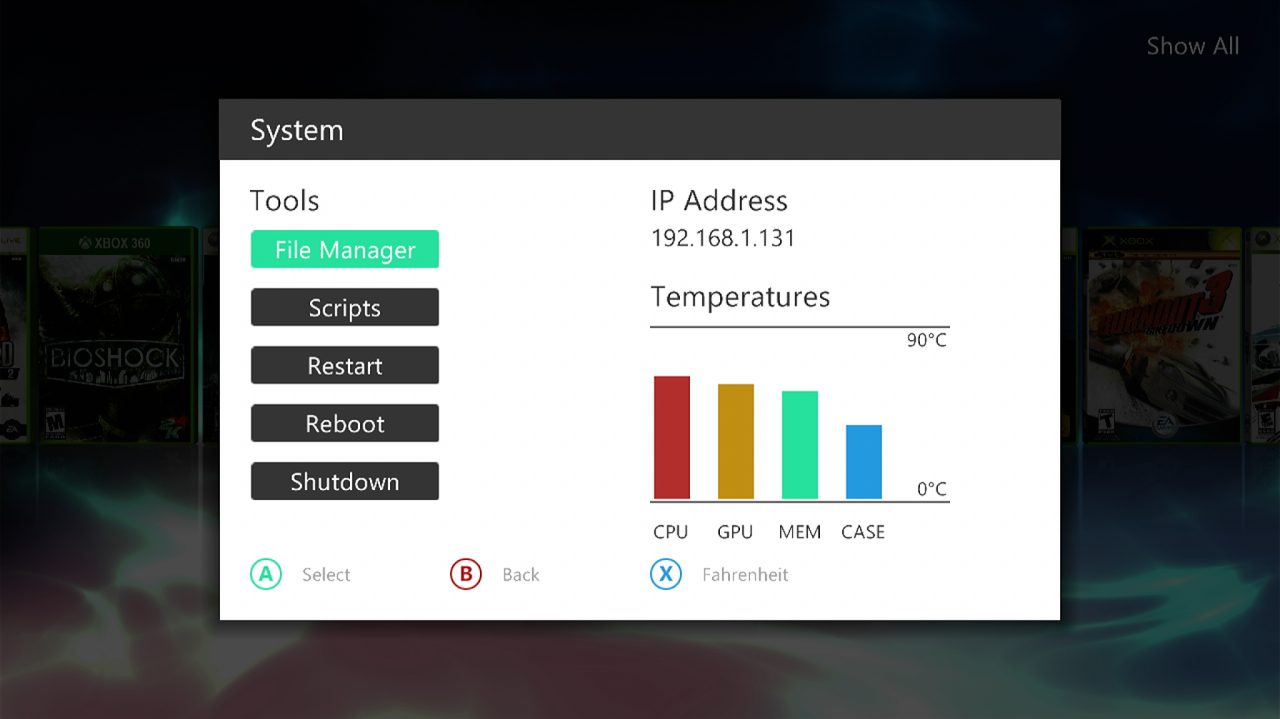
If your IP address is a bunch of 0's or 127.0.0.0, you are not connected to your router correctly. Verify that you are connected to the internet, make sure liveblock is enabled
- Take note of the ip address
Installing FileZilla
- We are going to move to a computer now
In order to use FTP, the console must be on and Aurora must be open.
- Download a ftp client, i use filezilla
- Open filezilla
- At the top you should see "host, username, password, port" in host put your consoles ip, username xboxftp, password whatever you set, port 21
- Press Quick Connect. It should pull up your console's hard drive contents. FTP is now set up.