Getting Started
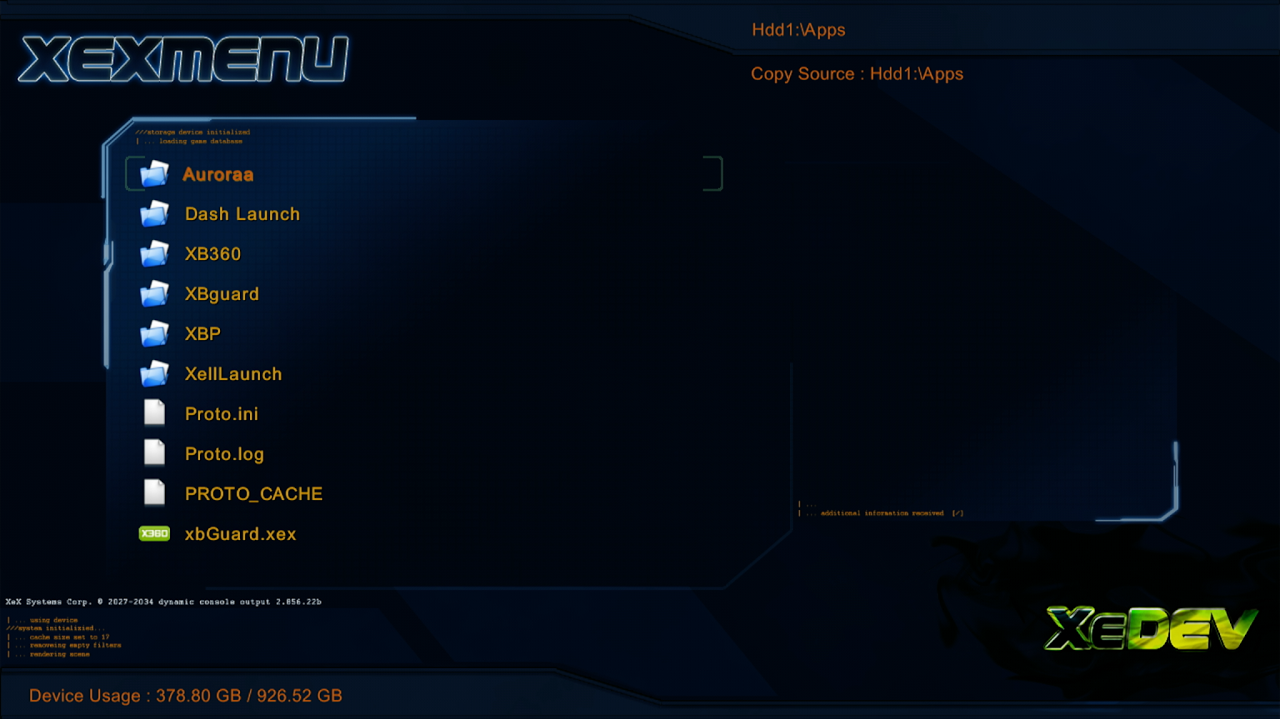
Setting up XeXmenu
Setting up XeXmenu
Downloading XeXmenu for BadAvatar Consoles
- Download XeXmenu
- Plug in your BadAvatar flash drive, inside the zip you downloaded is a content folder, drag it to the root fo your flash drive
Before exploiting make sure you are not connecting to the internet at all, no ethernet or wifi connected/enabled if using BadAvatar
- Boot your console and exploit it
- XeXmenu will now show in the My Games and Apps menu on the Microsoft Dashboard
Downloading XeXmenu for RGH Consoles
- Download XeXmenu
- Plug in a flash drive into your Xbox and load the Microsoft Dashboard
- Go to settings > storage
- Format the flash drive using the console
- Plugthe flash drive into your computer
- Open the XeXmenu zip
- Inside you should see a folder called content
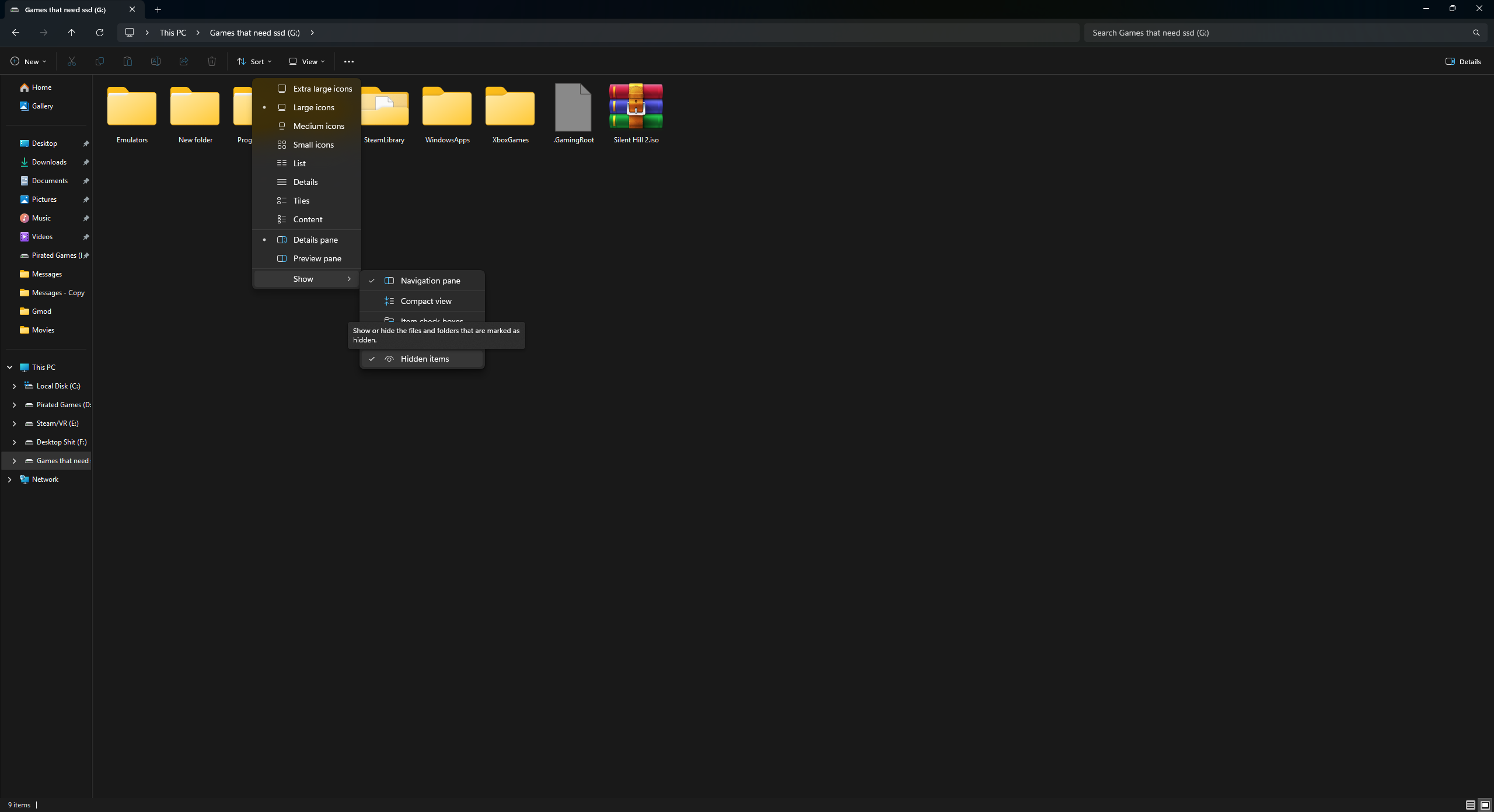
- Open your flash drive in File Explore and drag the content folder to the root of your flash drive
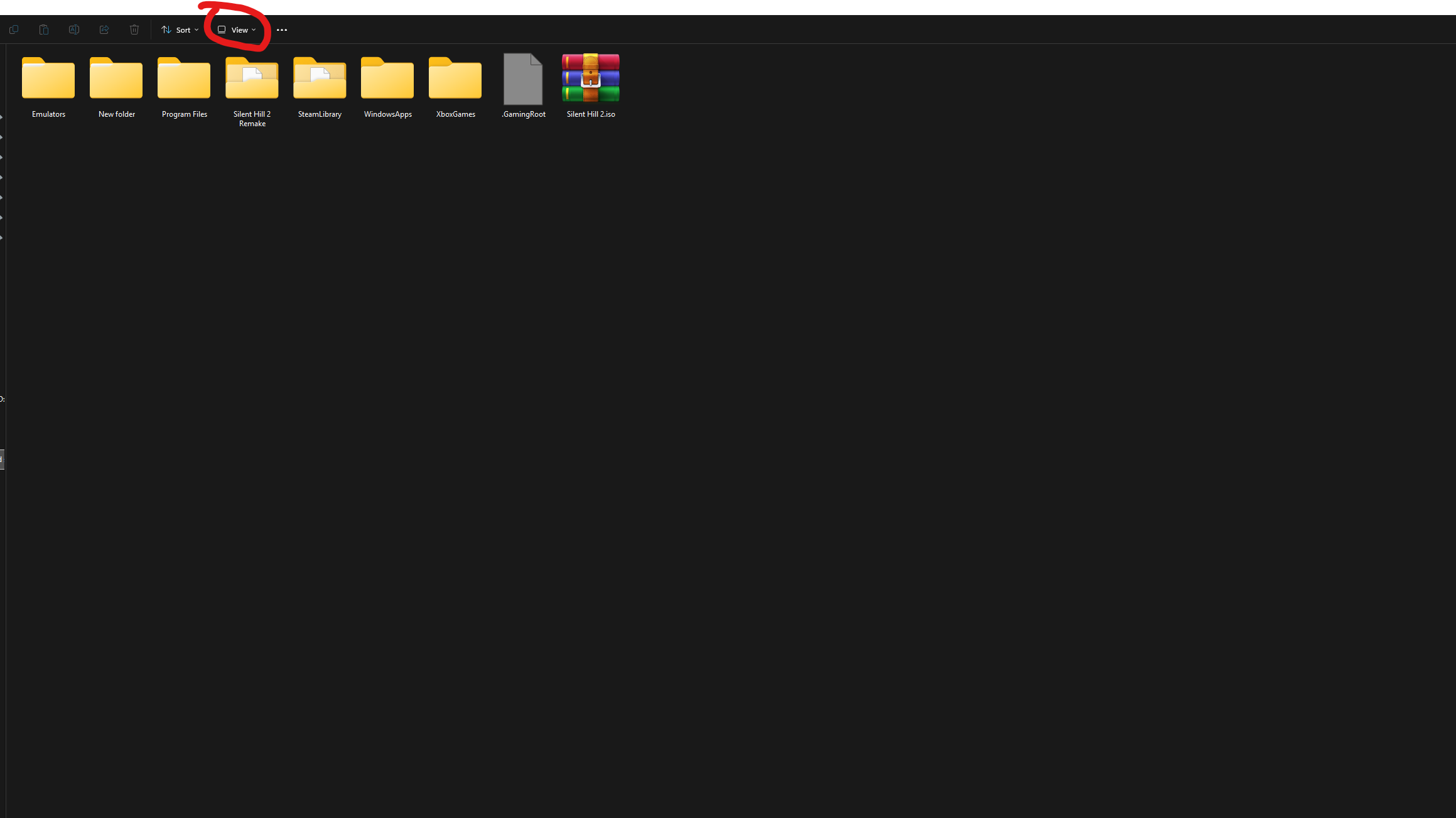
make sure you turn on hidden folder in file explore by clicking view and the show and enable hidden items if you do not see a content folder on your flash drive
Adding XeXmenu to your console
- Boot your console into the Microsoft Dashboard
- Go to settings > storage
- And click on your flash drive
- Under the demos you should see XeXmenu as a demo
- Move the file to your hard drive by pressing Y and clicking move
- XeXmenu will now be in your My Games and Apps section on the Microsoft Dash