Games and DLC
Installing DLC
Installing DLC
Downloading your DLC
You can use something like xbPirate to download DLC from the Xbox Marketplace, but note that a lot of games and DLC have been delisted.
- Download your DLC and extract it if it is in a zip
- Inside the zip it should have a Titleid folder
a Titleid should look something like 415608c3
Adding the files to your console
- If you store your files on your internal hard drive connect to FTP.
- Or if you store your files on a flash drive plug in your flash drive to your computer
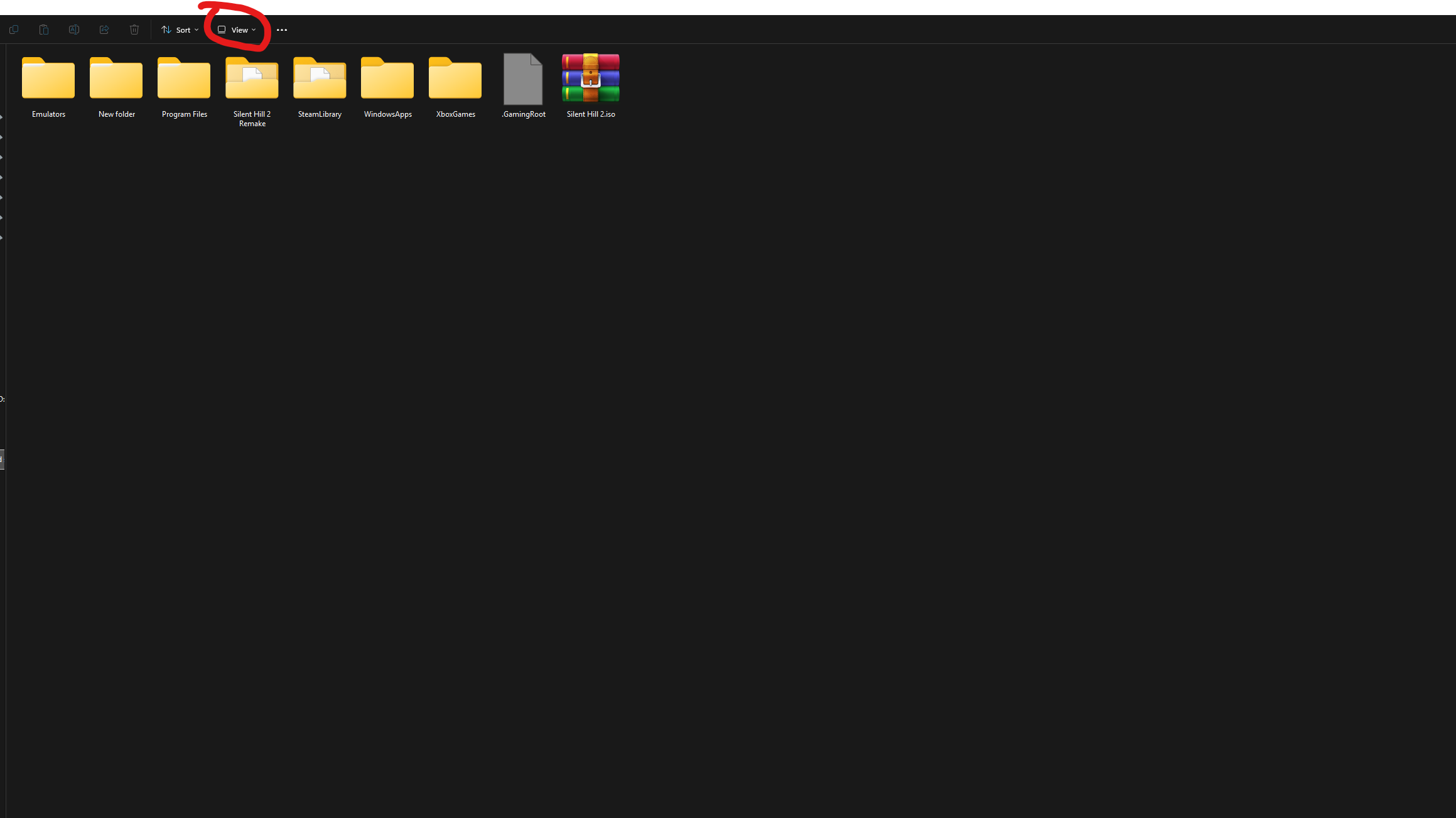
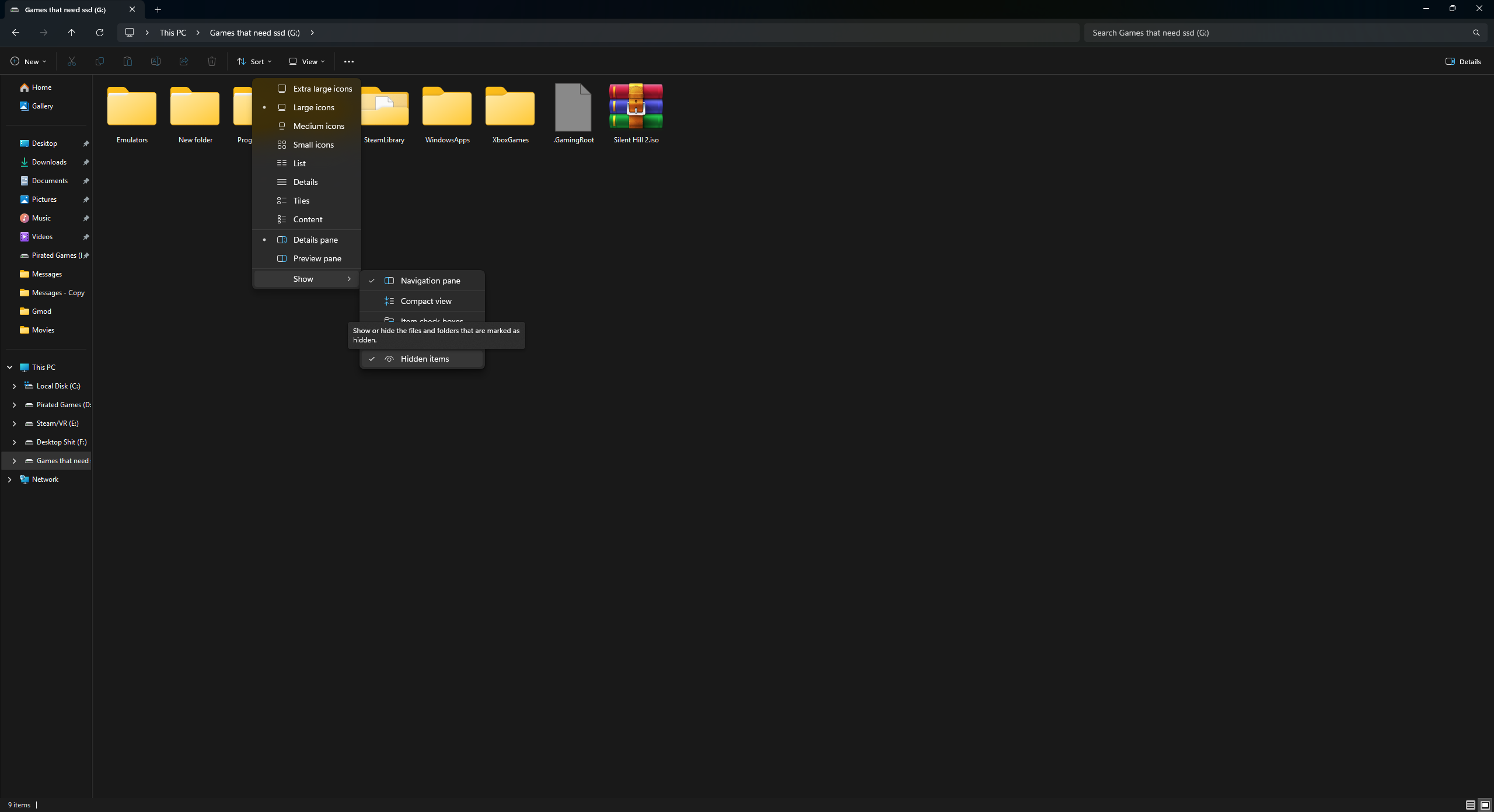
make sure hidden folders are visible in File Explorer by clicking View, then Show, then Hidden items.
- Open your storage device
- Find the content folder and open it
- You should see the folder labeled 0000000000000000
- Drag the Titleid folder into the 0's folder, if it asks to replace anything click yes, let the files upload
If you just have the raw dlc file open up your content folder go to the 0's folder, find your games Titleid
open the folder, if dont have a folder named 00000002 make one and put your file in it
Before exploiting make sure you are not connecting to the internet at all, no ethernet or wifi connected/enabled if using BadAvatar
- Make sure your game is up to date.
Confirming the console thinks you own them
- Before you play the game with DLC, make sure the DLC is set as "owned."
- Next we are going to download XM360
- If you store your files on your internal hard drive connect to FTP.
- Or if you store your files on a flash drive plug in your flash drive to your computer
- Make a folder called Apps, on your drive, and make a folder called XM360 and extract the content of the zip into the XM360 folder
- Open XeXMenu if you use the Microsoft Dash and navigate to where your XM360 files are
- If you use Aurora press select
- File manager
- And navigate to where your XM360 files are
Using XM360
- Open XM360.xex
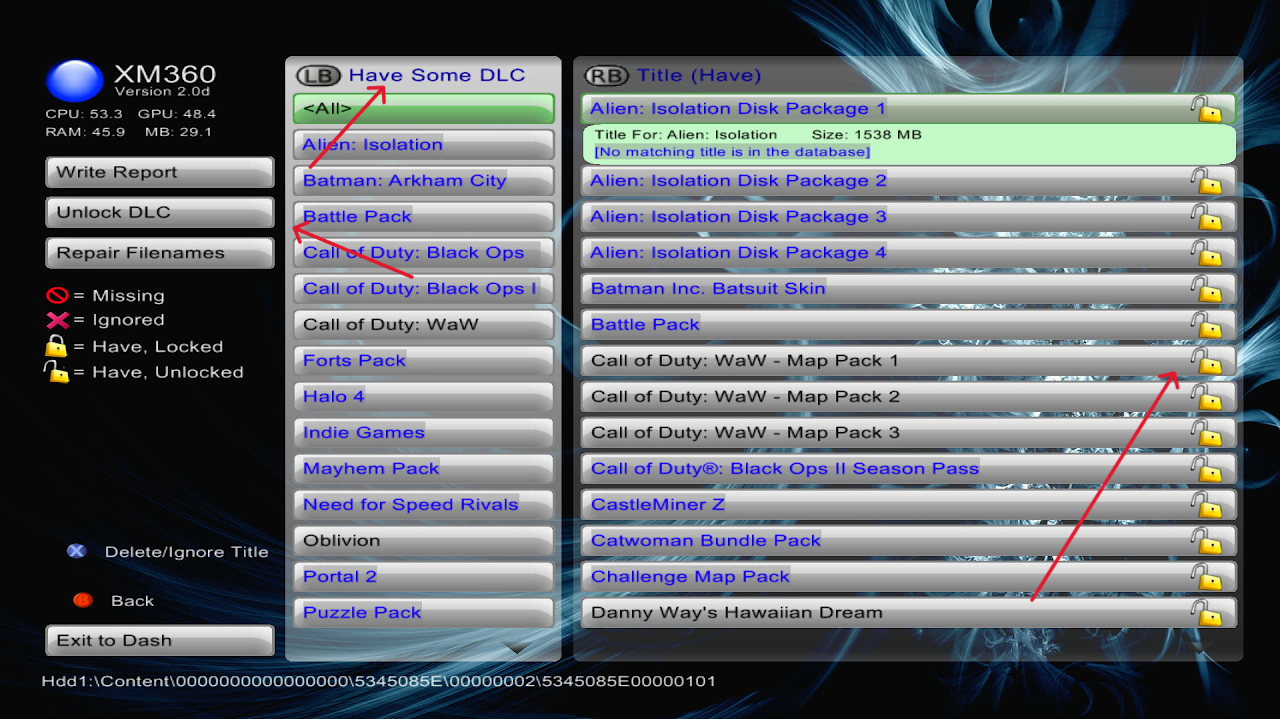
- On the left press show DLC
- You should see the tab "have some DLC" find the game with your DLC
- Once found, the right side should show the DLC for the game.
- The lock will either be unlocked or locked. If it is unlocked, the DLC is ready to go.
- If not, press Unlock DLC on the left side. This will set the DLC as purchased for the game. You can then boot your game and you are good to go.