Dashboards and Tools
Installing xbGuard
Installing xbGuard
Installing xbGuard
Live block gets disabled when the stealth is loaded, when you go to remove your stealth server make sure you turn liveblock back on
you can download any stealth you want, im using xbGuard as my main
- Starting off download xbGuard
Adding xbGuard For BadAvatar
- Insert your flash drive into your computer if you store your files on a flash drive
- If you store your files on your internal hard drive connect to FTP.
- If you store your BadAvatar files on a flash drive open the USB folder, if on an HDD open the HDD folder
- Put the xex files inside of the zip onto the root of your storage device where you store your BadAvatar files, should be xbdm.xex, xbGuard.xex and jrpc2.xex,
- Take the launch.ini file included in the zip and put it on the root of your storage device with your BadAvatar files, if you use a custom dash other the Microsoft dash make sure to re add it to the Default = and save the ini file

Adding xbGuard to Dashlaunch
this part is only for RGH consoles only
- Insert your flash drive into your computer if you store your files on a flash drive
- If you store your files on your internal hard drive connect to FTP.
- Put the xex files inside of the zip onto the root of your storage device should be xbdm.xex, xbGuard.xex and jrpc2.xex,
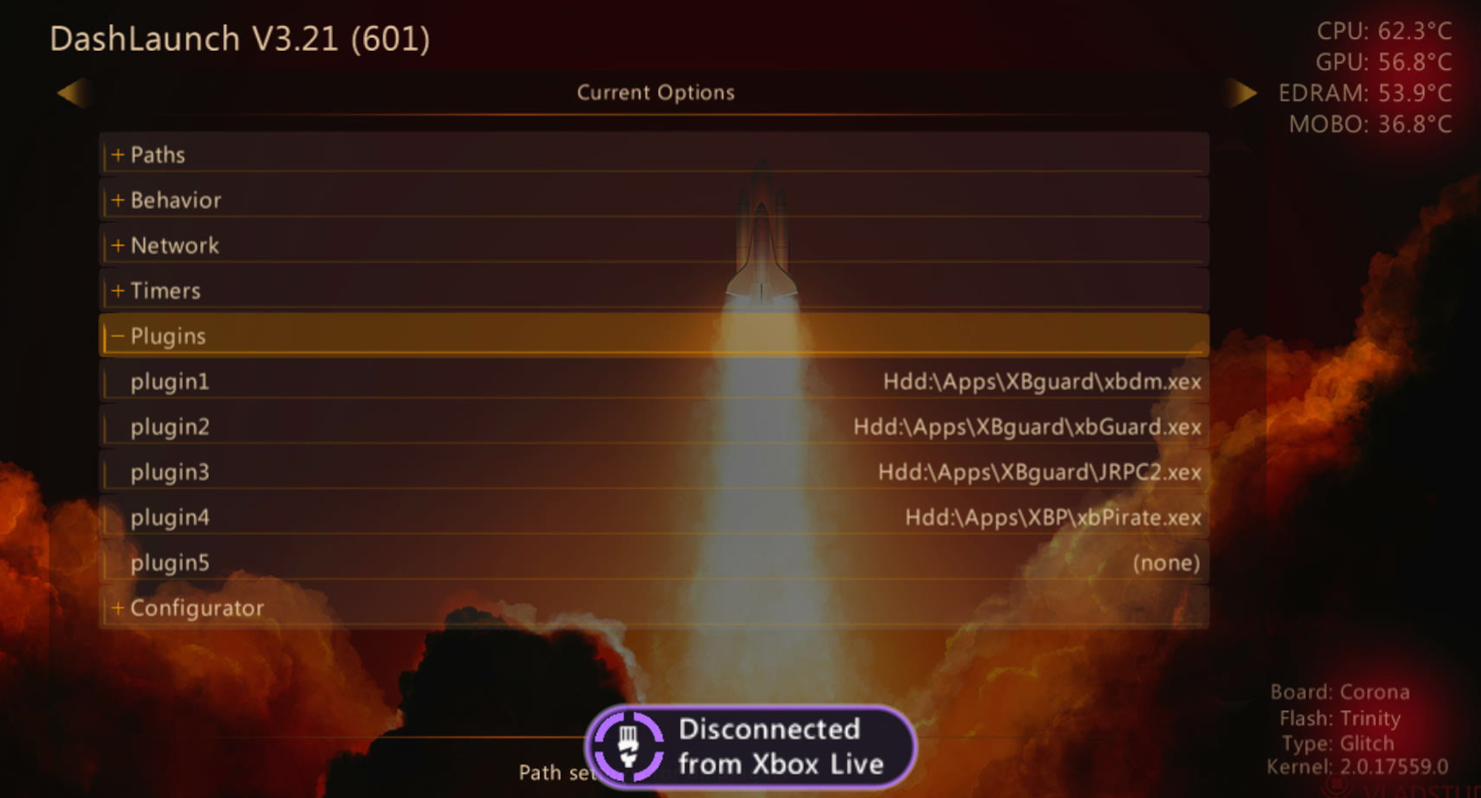
- Open up Dashlaunch and go to plugins
- Under plugin one select the xex file for xbdm
- For plugin two select xbGuard
- For plugin three select JRPC2
- Press RB and X on HDD to save your config if you store your files on your internal hard drive or click X on USB if you store files on your flash drive
Connect to Xbox Live
Last you need to connect to Xbox Live
Before exploiting make sure you are not connecting to the internet at all, no ethernet or wifi connected/enabled if using BadAvatar