Networking
Setting up Xbox Neighborhood
Set up Xbox Neighborhood with the Xbox SDK so you can browse the console from your PC.
Setting up xbdm
- Starting off you'll need to plug in your flash drive into your computer
if you followed my tutorial for installing a stealth server, you should already have xbdm setup and can move onto the next step
- Make a folder on your flash drive called Apps
- Download xbdm and add it to your apps folder on your flash drive
- Open your launch.ini on your flash drive
- Find plugin1 on your flash drive and add xbdm to the plugin1 slot
  plugin1 = Usb:\Apps\xbdm.xex
  should look like this
if on an RGH console copy over the file using a flash drive and XeXmenu, then open Dashlaunch and add it to plugin one, press RB and X on hdd to save changes
Downloading the Xbox SDK
this part is done fully on the computer
- Download the SDK files to your computer.
- Open the .exe.
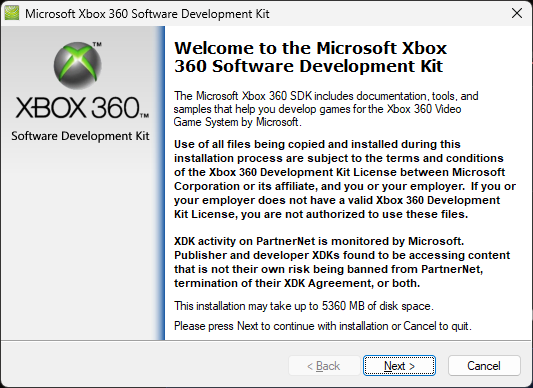
- Click Next and follow the on-screen instructions.
- Once it is fully installed, you can delete the installer from your Downloads folder.
- On your desktop you will now have an icon called Xbox 360 Neighborhood
- Double click the icon
- Press add xbox 360
- Click next
- Boot your console and exploit your console
- connect to internet without Xbox Live
- Now you need to find your console's IP address.
The three main ways to find this are: if you use Aurora as your main dash, boot into Aurora and press Select to display your console's IP address; if you use xbGuard, it is shown at the top of the screen; otherwise, boot to the Microsoft dash, go to Settings > Network, choose Wireless or Ethernet, then click Configure Network to view your IP address.
- A local ip address should look like 192.168.x.x
- Insert your ip into Xbox Neighborhood and click next
- Click yes to use ip as default
- Click Finish. You should now see your console listed as Jtag.
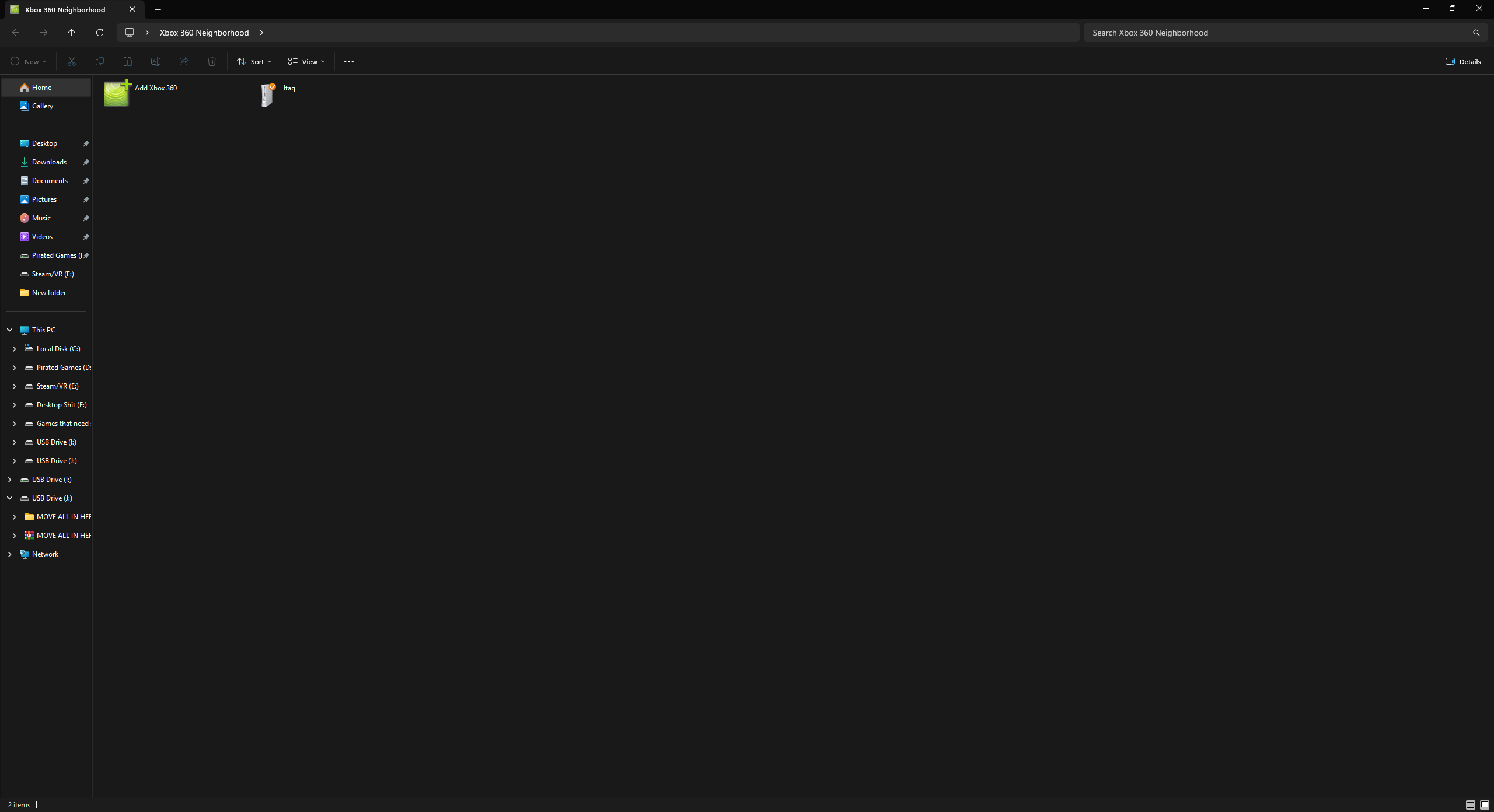
- Double-click Jtag, and you can now access and edit your files.