Getting Started
Using Bman Downloader
Using Bman Downloader
Downloading the app
- Download the lastest verion of Bman Downloader
- Extract the exe to a safe location and open it
Setting up the app
First boot of the app may take up to a 60 seconds to open
- When the app opens you will get this pop up
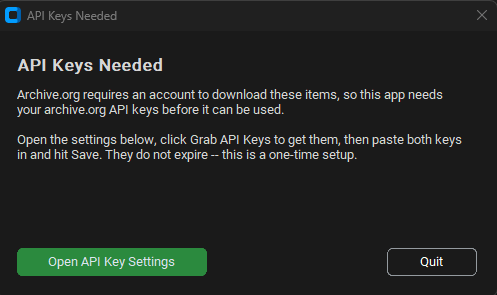
- Read it and follow what it wants you to do
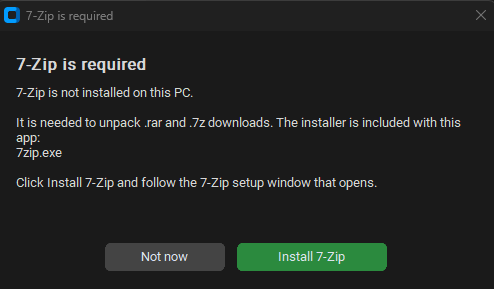
- You may also get this pop up, if you do, press install 7zip and follow the on screen instructions
Using the app
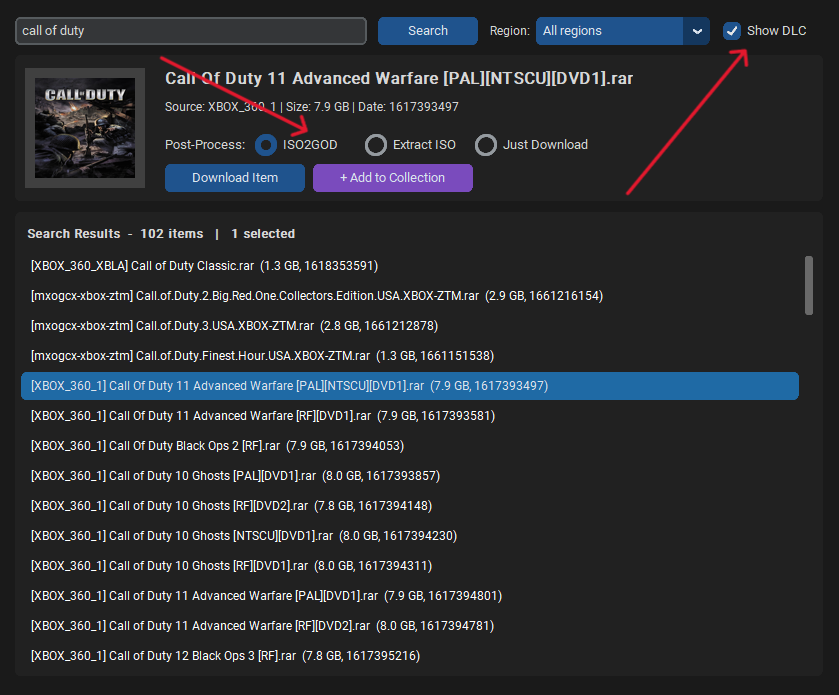
- You can now go to the Library / Search and search your games
- You can choose to show DLC or hide DLC so that there is less clutter
- Some games are in ISO format, you can choose how you want the app to convert it, either via ISO2GOD or extract xiso
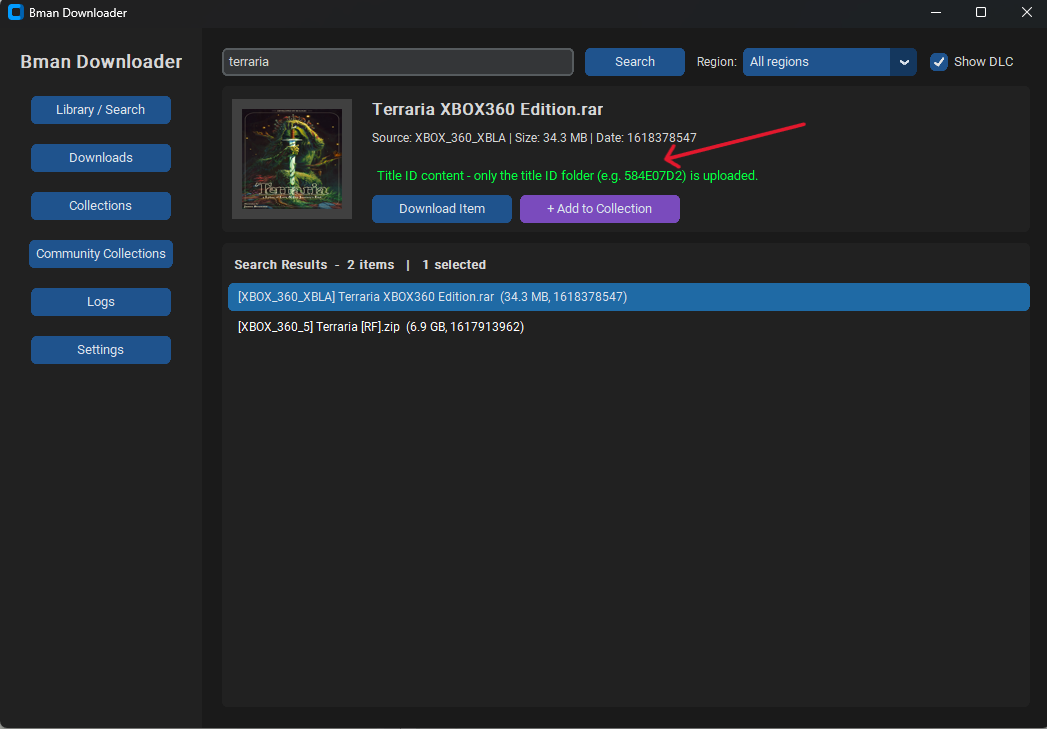
- Some games are already in GOD format as they are XBLA games or DLC for games, which can be seen here
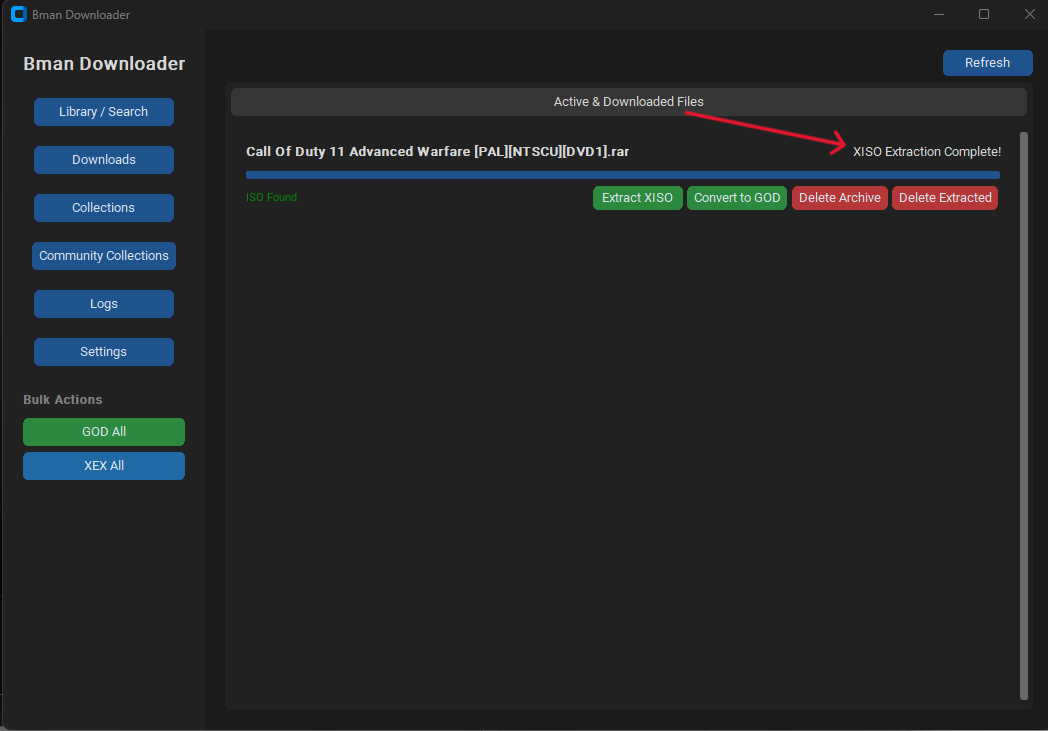
- Once you find your game press download, and itll start to download, the app will automatically extract the zip and convert the game if it needs to be converted into GOD or XeX format
Uploading via FTP
- Go to settings on the app and go to the ftp section
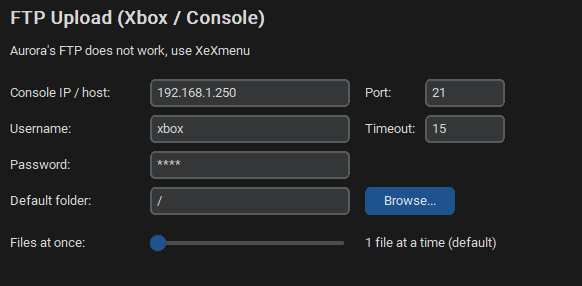
- Open xexmenu on your Xbox 360 and put your consoles ip address in the ip field
- The username and password is going to be xbox for both and the port is 21
- Press test, and make sure the app can connect to your console, then press save
- With your console connected, there will be some new buttons that now show when downloading games and in the downloads manager
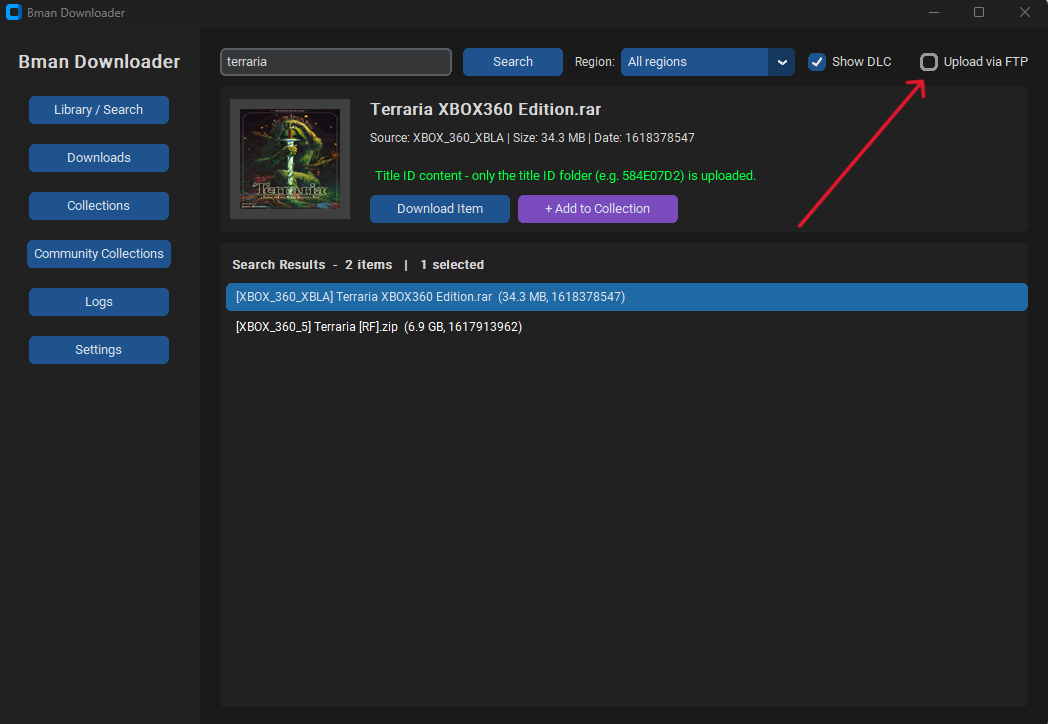
- In the Library / Search section you will now see a upload via FTP button, check marking this will auto upload the completed download/conversion to your xbox
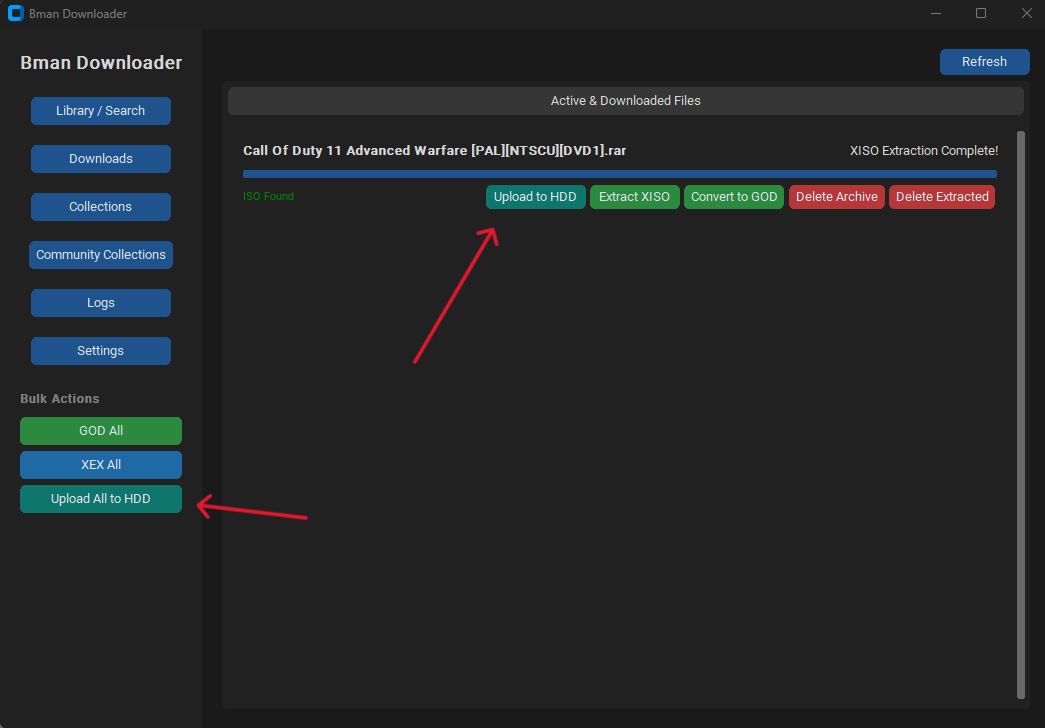
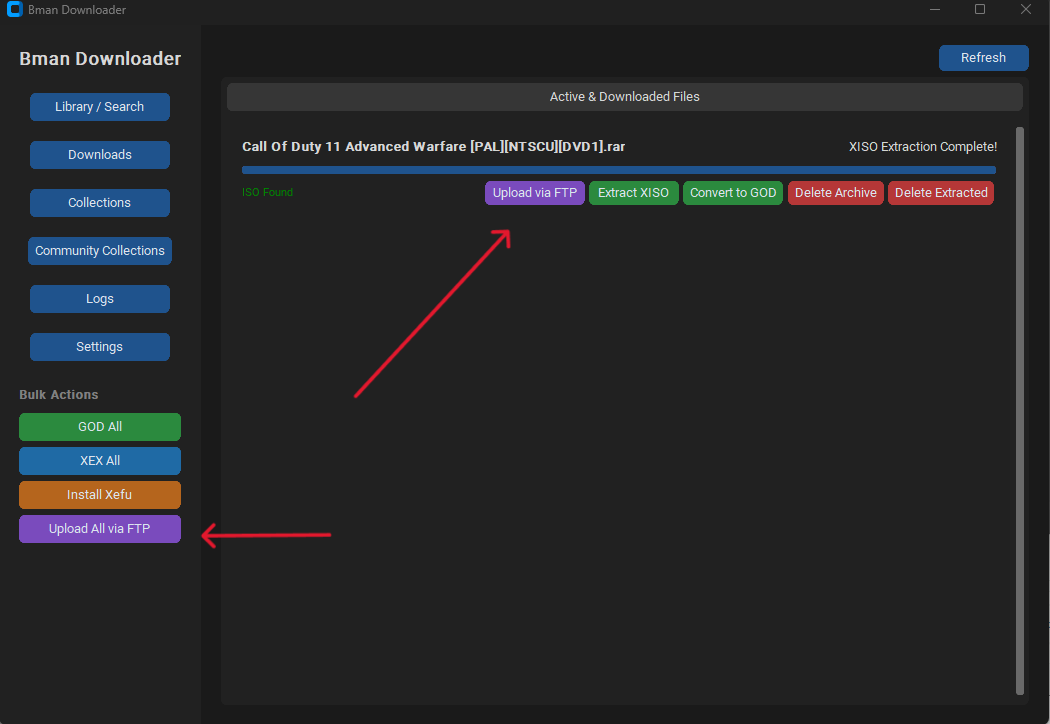
- You will also see upload via FTP in the downloads tab if you have games that still need to be uploaded
Uploading directly to your HDD/USB
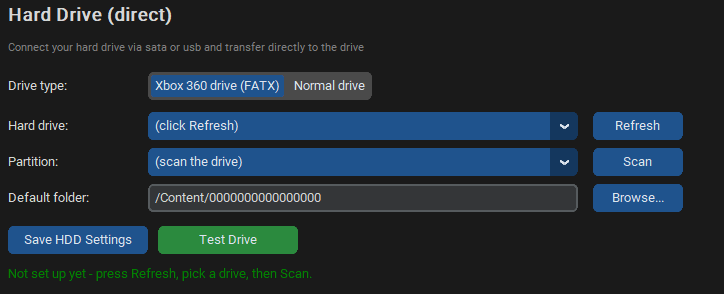
- Go to settings on the app and go to the Hard Drive section of the app
- Make sure to plug in your USB drive or your HDD via sata (either internal to your pc or using a sata to usb)
- If your uploading to a internal HDD form your xbox choose the "Xbox 360 Drive FATX"
- If its a USB drive choose Normal Drive
- Confirm the correct partition was selected and press save
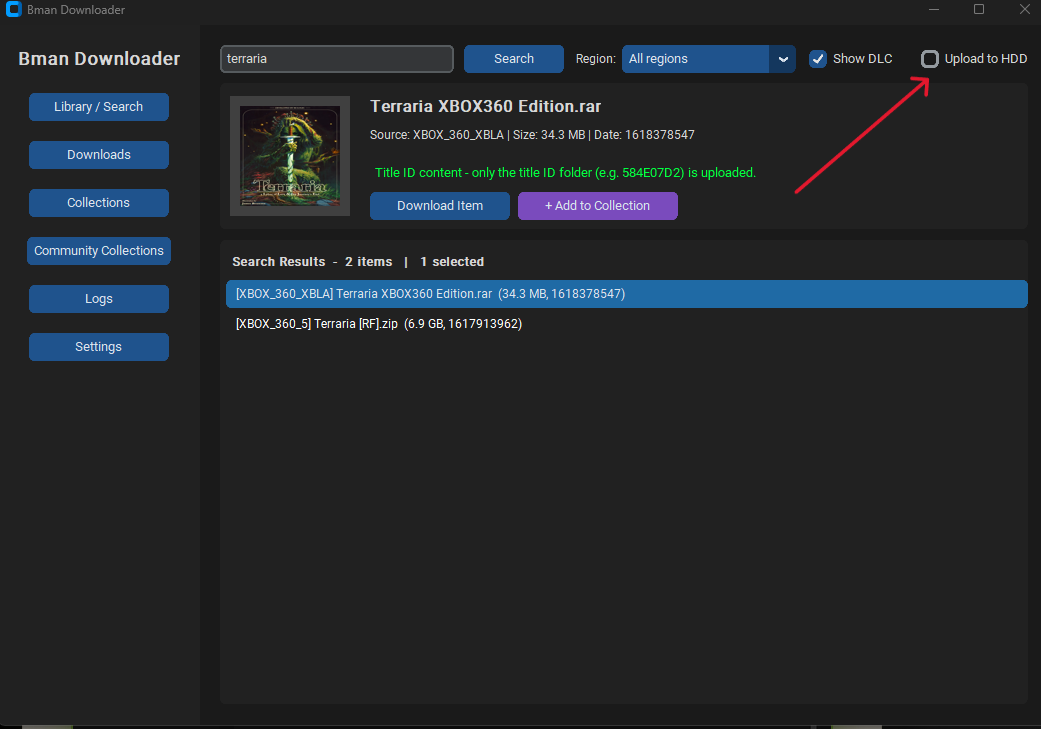
- With your storage device connected there will be some new buttons that now show when downloading games and in the downloads manager
- In the Library / Search section you will now see a upload to HDD button, check marking this will auto upload the completed download/conversion to your storage device
- You will also see upload via HDD in the downloads tab if you have games that still need to be uploaded